
FAQs
Getting Started
What is Qube+?
Qube+ is an intentional money system that brings the cash envelope method into the digital world.
It reflects the money in your connected checking account and lets you organize it into Qubes (digital buckets) for Bills, Spend, and Goals.
So you can see what your money is for, make clearer spending decisions, and stay in control before you spend.
Qube+ is not a bank and does not hold or move your money..
How does Qube+ work?
Qube+ links to your checking account and helps you organize your money into Qubes (digital buckets) for Bills, Spend, and Goals.
As you spend, Qube+ helps you track purchases, categorize transactions, and stay aligned with your plan.
With Pre-Qubing, open the app at checkout, see what’s available, enter the amount, then pay with your card. Your balance updates immediately, so your money stays aligned in the moment.
How do I use the Overview screen in Qube+?
The Overview screen is where you organize and manage your money inside Qube+. Your Qubes are grouped into Bills, Spend, and Goals, and each group total reflects the combined balance of the Qubes inside it.
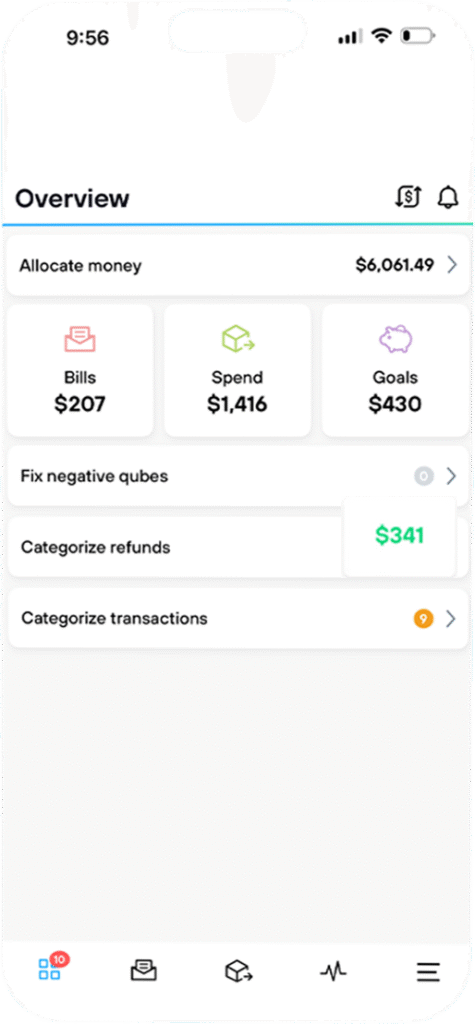
Allocate Money
This is money that hasn’t been assigned to a qube yet. New deposits and incoming funds appear here first. You can allocate it to the qubes that matter most.
Fix Negative Qubes
If a qube has been overspent, you’ll see it here. You can resolve it by reallocating available funds from Allocate Money or another qube with available funds.
Categorize Refunds
When a refund is received, it appears here so you can return it to the original qube or move it back to Allocate Money.
Categorize Transactions
Transactions that weren’t Pre-Qubed may appear here for review. Assign them to the correct qube to keep your plan accurate.
What makes Qube+ different from Qube Checking?
Both were built to help you spend with intention, but they work differently – by design.
Qube Checking (legacy product / not currently available)
Open app → See what’s available → Swipe your Qube debit card → Transaction approved or declined at purchase
Qube+ (current product)
Open app → See what’s available → Pre-Qube the amount at checkout → Pay with the cards and accounts you already use → Balance updates immediately
Qube Checking used a Qube-issued debit card.
Qube+ gives you more flexibility by working with the accounts and cards you already use, including your own credit cards, so you can stay in control and still earn rewards through your card provider.
What makes Qube+ different from other apps?
Most money apps react after you spend. Qube+ helps you stay aligned before and as you spend.
Traditional apps: Spend → Wait → Hope you’re on track
Qube+: Plan → Spend → Pre-Qube → Stay Aligned
Create qubes (digital buckets) for Bills, Spend, and Goals, then update balances at checkout or when a bill is due with Pre-Qubing.
Do I need to move my money into Qube+?
No. You do not need to move your money into Qube+.
Qube+ works with the checking accounts and cards you already use. When you connect your account, Qube+ reflects your available money so you can organize it into qubes (digital buckets) for Bills, Spend, and Goals.
Your money stays in your existing bank account.
When does billing start for Qube+?
Qube+ is currently in beta access. Billing has not started yet. We’ll share details about billing timing, pricing, and any next steps before charges begin.
How To Videos
- How to Get Started in Qube+
- How to Use Credit Cards in Qube+
- How to Add a Credit Card in Qube+
- Credit Card Quick Demo
- Pre-Qubing Quick Demo
- How PreQubing Works
- Pre-Qubing Deep Dive
- Pre-Qubing in Action (w/Matthew)
- How to Migrate Your Existing Qube Account
- How to Set up Your Qube+ Account if Already Migrated
- How to Add Eligible Family Members to Qube+
- Reset Budget Timeline Walkthrough
Pre-Qubing
What is Pre-Qubing?
Pre-Qubing is the intentional money habit of entering a purchase in Qube+ before you pay.
It lets you update your Qube balance immediately at the moment you spend—without waiting for your bank transaction to sync or post later.
At checkout, open the app, see what’s available, enter the amount you’re about to spend, then complete your purchase.
How does Pre-Qubing work? (walkthrough)
1- Tap the qube’s balance related to the purchase you're about to make.

2- Enter the purchase amount and tap Pre-Qube.
That’s it. You’re done.
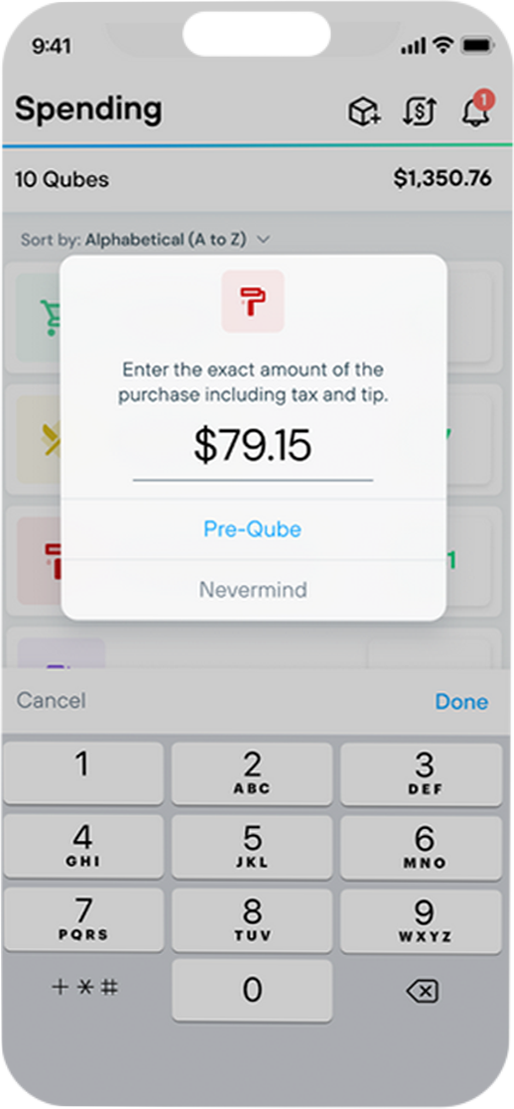
3. Review your Pre-Qube.
You’ll see the amount you entered held in the Pre-Qube section at the top of the screen.
Once the bank transaction posts and is matched, the Pre-Qube is automatically cleared. If you made a mistake, tap the Pre-Qube section to edit or delete it.

How long do Pre-Qubes stay?
Pre-Qubes are temporary.
When a matching bank transaction arrives, the Pre-Qube is automatically removed once it matches.
If no matching transaction arrives, a Pre-Qube will automatically expire after a few days to help avoid clutter or confusion.
Can I edit or delete a Pre-Qube?
Yes. You can:
- Edit a Pre-Qube if you entered the wrong amount.
- Delete a Pre-Qube if a transaction was canceled or declined.
How does Pre-Qubing work with credit cards?
When you make a purchase with your credit card, open Qube+ at checkout, tap the qube balance you’re spending from and enter the amount before (or as) you pay.
Your spending balance updates immediately and money is set aside in your credit card Bill Qube when the transaction posts, so you’re ready when the payment is due.
Credit Cards
How do credit cards work in Qube+?
When you add a credit card in Qube+, a dedicated Bill Qube is created for that card. When you Pre-Qube or categorize purchases from that card, money is set aside in the Bill Qube, so you’re ready to pay your credit card bill when it’s due.
Does Qube+ pay my credit card bill automatically?
What account should I use to pay my credit card?
For the best experience, pay your credit card using the checking account you linked in Qube+.
This helps keep your balances and plan aligned, so what you see in Qube+ matches how you’re managing your money.
Can I add more than one credit card?
Yes. You can add up to 10 credit cards in Qube+, and each card gets its own Bill Qube.
Transactions & Categorizing
Why did my purchase land in Uncategorized (formerly known as Qubeless)?
A purchase lands in Uncategorized when it isn’t Pre-Qubed or confidently assigned.
This can happen when:
- A purchase isn’t recorded in the moment.
- A transaction happens automatically, like a bill payment, subscription, or scheduled transfer.
Because these transactions don’t have an in-app action tied to them, Qube+ avoids guessing and places them in Uncategorized so you can review and assign them yourself, helping keep balances accurate.
How do I fix transactions that went to Uncategorized?
- Assign them to a qube.
- If assigning Uncategorized transactions to a qube pushes it negative, add funds to it from unallocated or another qube.
Why don’t I see some transactions in Uncategorized?
- These do not affect your Qube balances.
- They do not affect your account balance.
- They are viewable only on the Activity screen.
- If you “ReQube” one, it will show up in that Qube’s activity for your records.
Only transactions that settle after your initial sync will appear in Uncategorized. This explains why many users get a notification but don’t see anything in Uncategorized, the transaction likely settled before the link date.
In short:
If it happened before the link → Past Transactions
If it happened after the link → Uncategorized
How fast do transactions show up?
Transaction timing depends on your bank or card provider. Some transactions may appear quickly, while others can take longer to post.
With Pre-Qubing, you don’t have to wait. You can record the purchase at checkout so your Qube balance updates immediately, even before the bank transaction arrives.
Once the transaction posts, Qube+ automatically matches it to your Pre-Qube when possible.
Can I delete a transaction?
No. Transactions can’t be deleted because they affect your financial ledger. Instead, categorize transactions into the correct qube so your budget stays accurate.
Do I need special handling for Amazon purchases?
Not in Qube+. All Amazon purchases show up as regular transactions, you categorize them like any other expense.
Accounts & Connections
How many accounts can I connect to Qube+?
During beta, you can connect:
- 1 checking account
- Up to 10 credit cards
Qube+ is designed to work with the accounts and cards you already use, helping you stay organized and intentional with your spending.
My bank is linked but balances or transactions aren’t showing.
Try these steps in order:
- Go to Profile, make sure you selected your Qube+ account from the dropdown, and check that your bank is marked verified. If you see a re-link button, follow the prompts to reconnect your account. This can happen periodically depending on your bank. If you still don’t see anything: then go to your “Linked Bank Accounts” page and click.
- If you still don’t see anything: then go to your “Linked Bank Accounts” page and click “Sync”. If balances don’t match after syncing, click “Repair”. If that does not work, click “Replace”.
Plaid says my name doesn’t match my joint account.
This usually happens when the bank lists one spouse as the primary owner. Try:
- Linking through the other spouse’s Qube+ login.
- Confirming with your bank how your names appear on the account.
If the issue persists, please report it in the Beta Bug Forum.
Is it safe to link my bank accounts to Qube+?
Yes. Qube+ uses bank-level encryption and secure, read-only connections to keep your information safe. Your credentials are never stored or shared.
Qube+ connects through Plaid, a trusted third-party provider used by major financial institutions. Plaid gives Qube+ a secure, read-only token, allowing it to view balances and transactions, but never move your money.
Troubleshooting
What do Sync, Repair, and Replace do?
🔄 Sync
Pulls the latest transaction from your bank and refreshes your balance. This is the safest option and should be your first step anytime something looks off. Transaction updates follow normal banking timelines and will take longer during holidays and weekends.
- What stays: everything.
🔧Repair
Repair realigns your ledger by creating a clean starting point from your current bank balance. Running it resets your qube balances to $0 and moves past transactions to Historical, while suggesting your previous allocations so you can quickly re-allocate your plan.
- What stays: Your qubes and plan setup, and your transaction history (including prior qube assignments) remains visible in activity and reports.
- What changes: Your current qube balances reset to $0, and past transactions are marked historical so they no longer affect your running balance.
🗑️ Replace
- What stays: qubes, budgets, and transaction assignments within 90 days.
- What’s lost: your qube balances and transactions beyond 90 days.
Quick tip:
Most issues can be solved with the “Sync” button. If balances don’t match after syncing, try the “Repair” button. If that does not work, try the “Replace” button.
Old transactions were imported, but those amounts aren’t in my balance.
Imported historical transactions won’t affect your current Qube balances. You can safely categorize them for reporting/history. Your current balance remains accurate.
My balance suddenly disappeared or shows zero.
Most of the time, this happens because the wrong profile is selected. Go to:
- Profile → Dropdown at the top
- Select your Qube+ account
If the balance still looks off, follow the three step process. Go to your “Linked Bank Accounts” page and click “Sync”. If balances don’t match after syncing, click “Repair”. If that does not work, click “Replace”.
Why does my unallocated total look higher than my balance?
If you unqubed transactions in Uncategorized, you may experience this. On the Overview Screen, go to “Categorize Transactions” to qube your uncategorized transactions.
Assign each transaction to the right qube. If any qube goes negative, “qube it” then move money (usually from Unallocated). Numbers should align.
Why doesn’t Qube+ auto-Qube transactions immediately?
We’re currently using Plaid for initial beta stability but Plaid doesn’t always provide debit card timestamps.
We are actively working on:
- Faster transaction aggregators (15–60 min refresh)
- Data enrichment with timestamps
- Personalized suggestions and categorizations based on your sending habits.
- A more automated user flow.
What you’re seeing in beta is not the final experience.
Where is the pre-authorization feature?
Pre-authorization lets you enter an amount in advance (e.g. $19.26) so any matching transaction gets auto-qubed. Right now, this feature is unavailable.
Family & Household
Can my spouse use Qube+ under my account?
During Beta, households can use Qube+ together as long as they share the same connected checking account.
Will teens still be able to connect their own cards?
During beta, Qube+ supports one connected checking account and up to 10 credit cards. It does not currently include separate teen card connections.
Family and teen features may be explored in future releases, but specific capabilities and timing have not been finalized.
Community Updates
Help & Support
Running into an issue? Contact support directly at support@qubemoney.com.
Looking for community? Join our Facebook community of intentional spenders to share wins and get good with money together.
© 2026 Qube Money LLC. All rights reserved.